ChaptersExport and publish
Export and publish
Exports render on our servers in 1080p at 30 frames per second, so your computer stays free. Captions come along as SRT and VTT files.
- 5 credits per minute
- 1080p MP4
Export the MP4
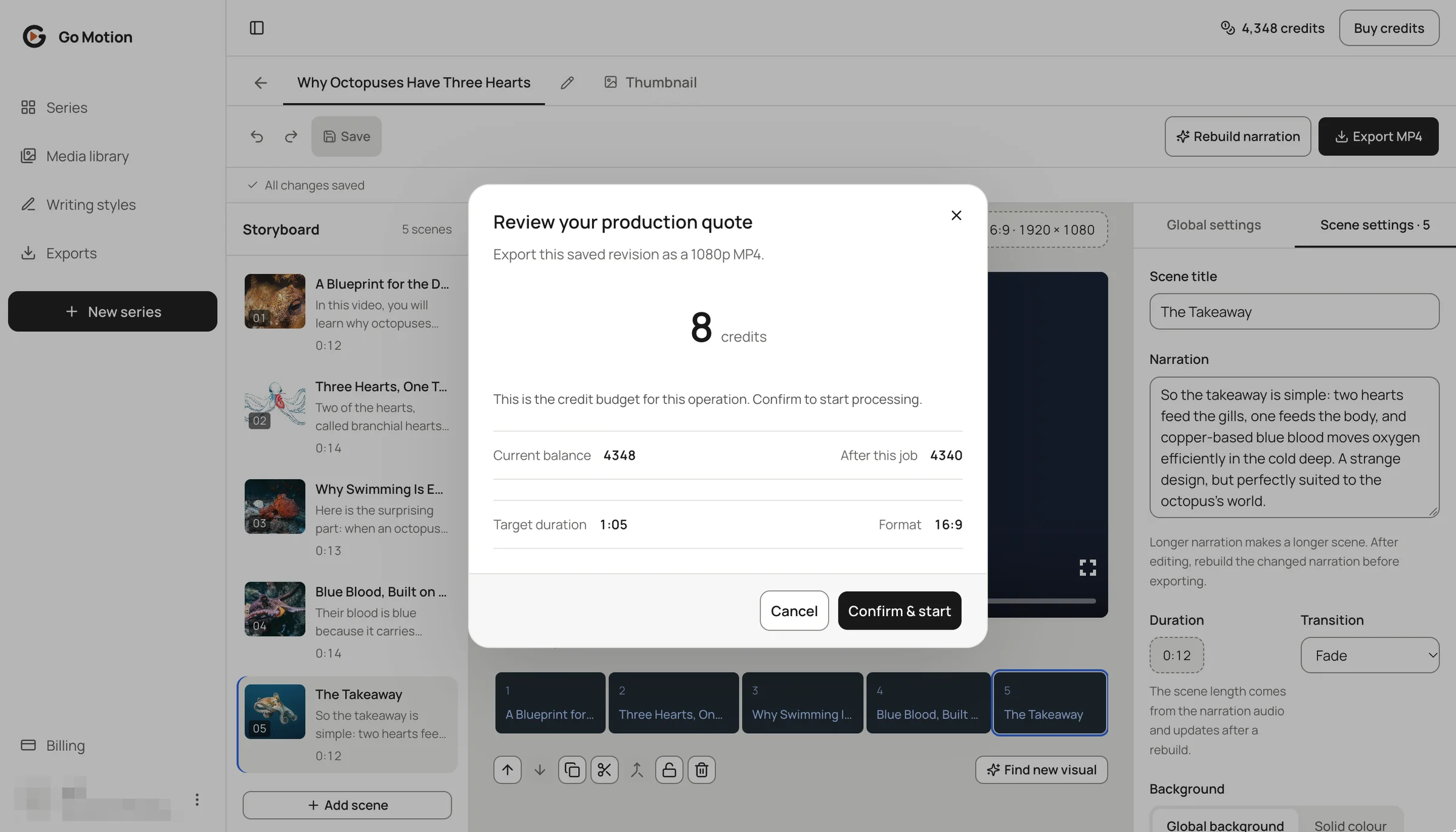
Press Export MP4 in the editor. The quote shows the price for the saved version of your series; confirm and the render starts. If a scene still waits for its rebuild, the export waits until the voice matches the words.
 123
- 110 credits: two started minutes at 5 credits each.
- 2The quote repeats the length and format of the saved version.
- 3Confirm & start renders on our servers.
Download the video and captions
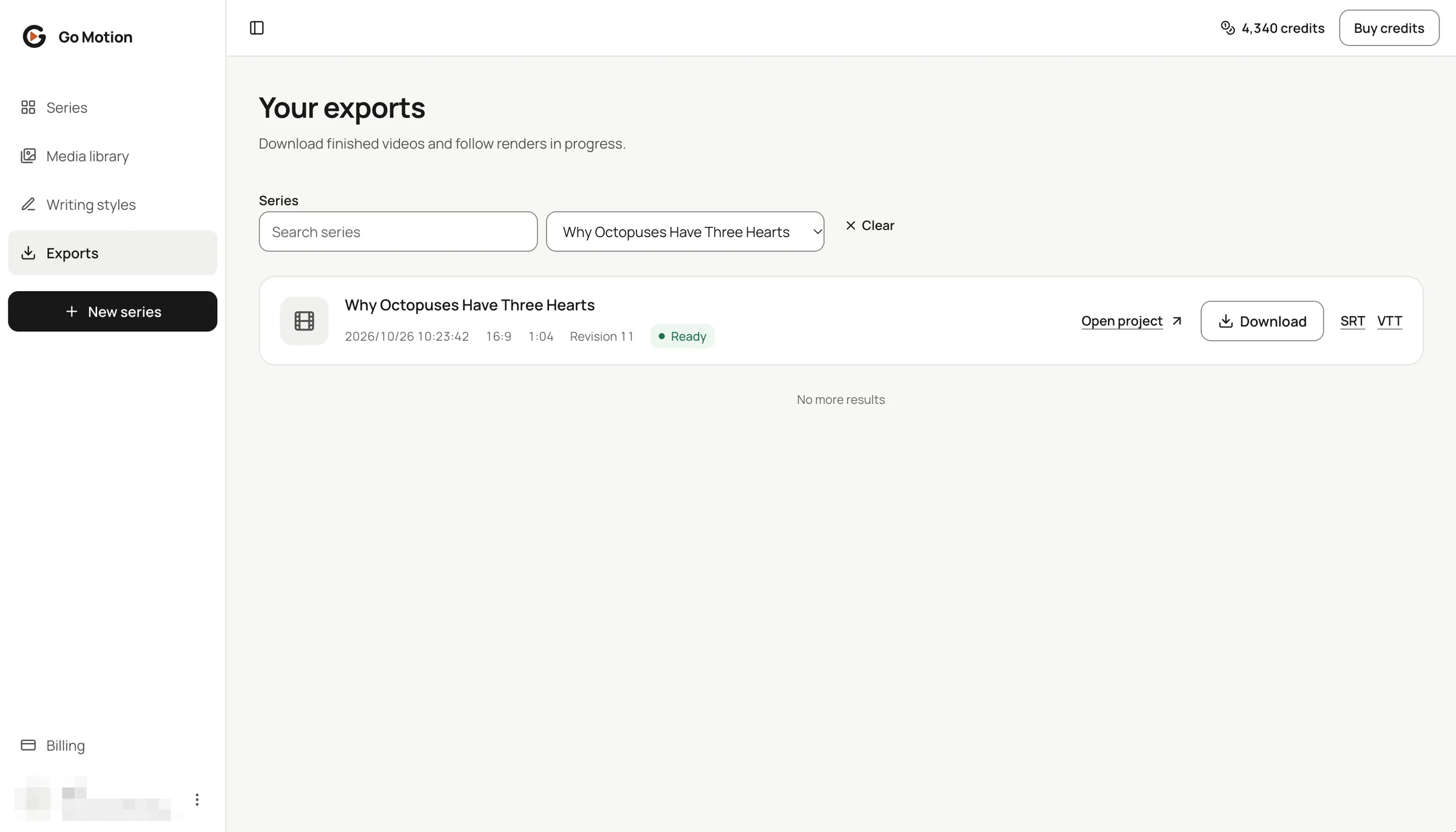
The Exports page lists every render with its series, format, length and date. Download the MP4 and the SRT or VTT captions, or open the project again. Filter by series when the list grows.
 12345
- 1Series name, date, format, length and the revision that was exported.
- 2Filter by series when the list grows; the filter stays in the address.
- 3Download the 1080p MP4.
- 4SRT and VTT captions for YouTube, TikTok and Reels.
- 5Open project jumps back to the editor.
Publish anywhere
- YouTube: upload the 16:9 MP4 and the PNG thumbnail. If you switched the burned-in captions off, add the SRT file as subtitles instead.
- Shorts, Reels and TikTok: export the series in 9:16; captions are already burned into the video.
- Other platforms: the MP4 is H.264 with AAC audio, which every major platform accepts.
Formats at a glance
| File | Details |
|---|---|
| Video | MP4, 1080p, 30 frames per second, 16:9 or 9:16 |
| Captions | SRT and VTT, timed to the narration |
| Thumbnail | PNG, 1280×720 or 720×1280 |