ChaptersEdit your video
Edit your video
The editor has three columns: scenes, the live preview and settings. Edits are free to preview; only a new voice, a new picture or an export is quoted.
- Edits are free
- Re-voice from 2 credits
- New picture 5 credits
On this page
Watch production finish
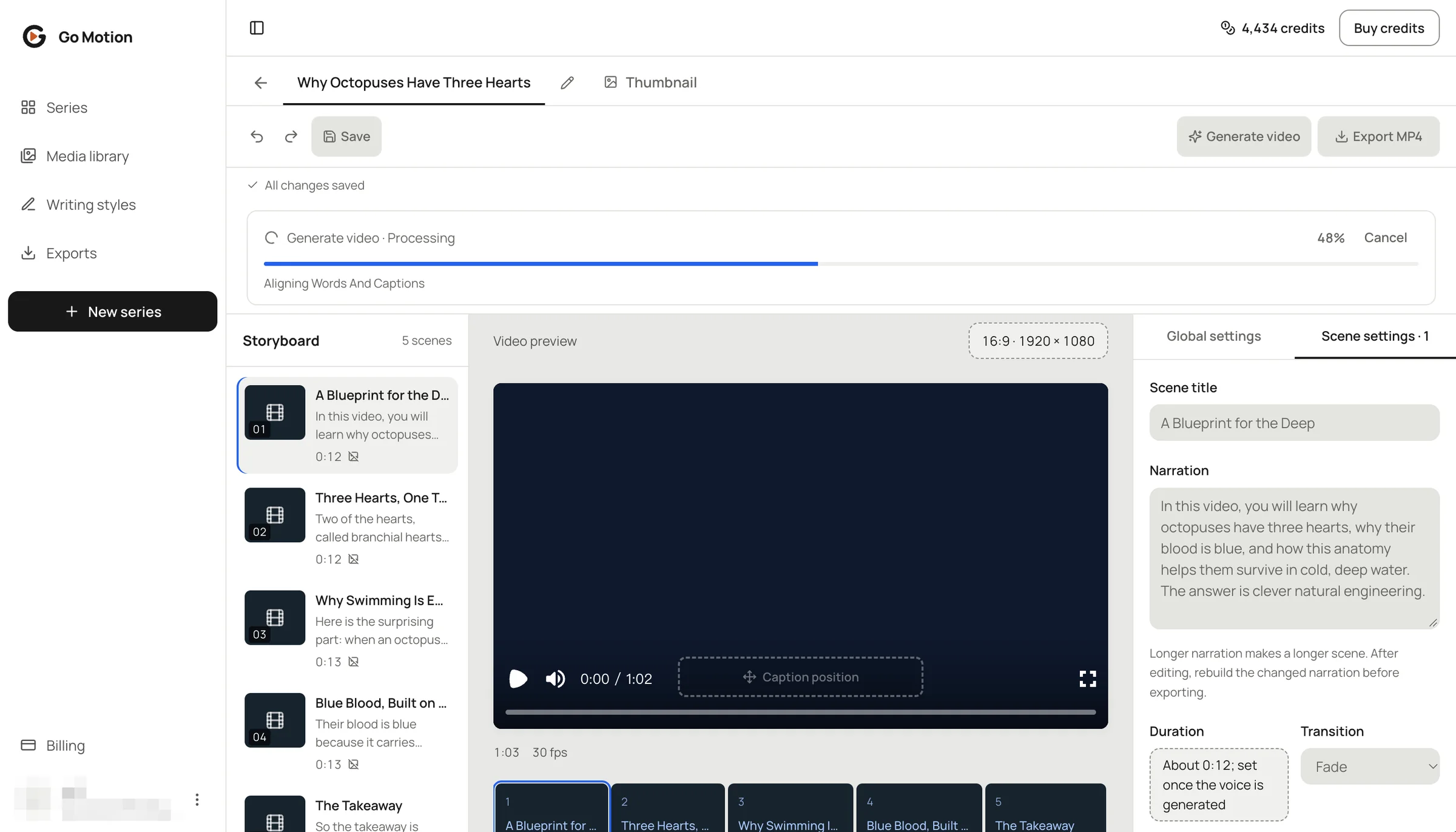
The progress card walks through the stages: narration, aligning words and captions, then the scene visuals. A one-minute video is ready in two or three minutes, and you can leave the page while it works.
 1234
- 1Progress and the current stage.
- 2Cancel stops the job; credits come back if no paid work has run yet.
- 3Scenes: every scene and its length.
- 4Scene settings already show the title and narration of the selected scene.
Find your way around the editor
 24
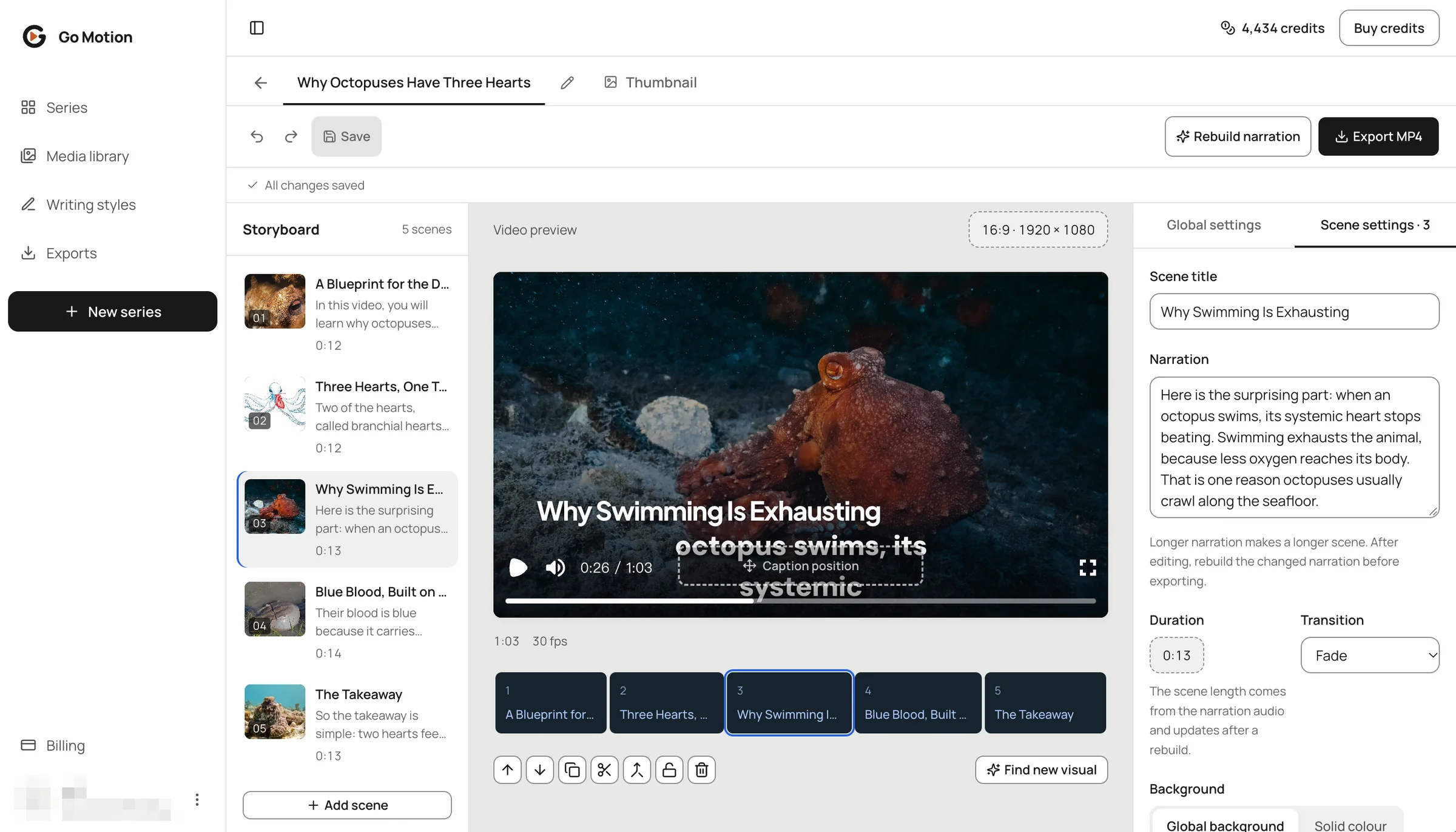
- 1Scenes: every scene now has footage, a title and its real length.
- 2The preview plays the current cut with voice, music and captions.
- 3Scene settings: title, narration, duration and transition of the selected scene.
- 4Scene strip and tools: reorder, duplicate, split, merge, lock or delete.
Rewrite a line and re-voice it
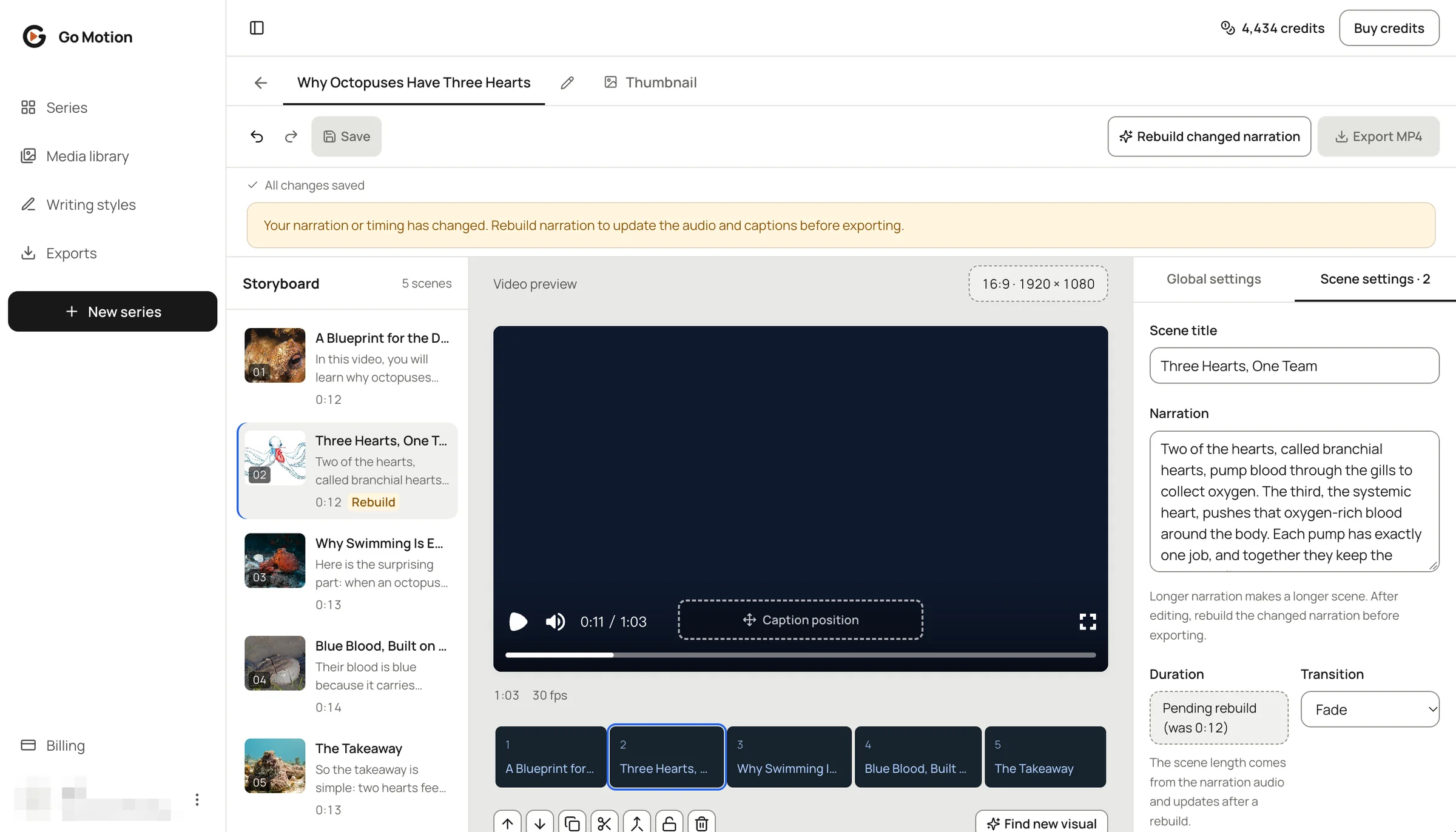
Edit the narration of a scene and it is marked Rebuild. Press Rebuild changed narration: only the scenes whose words changed are spoken again, the others keep their audio, and the captions are re-timed. The button stays off while the voice already matches every scene.
 24
- 1The banner reminds you that the voice no longer matches the words.
- 2Rebuild changed narration opens the quote; Export MP4 waits until it is done.
- 3Edit the narration here; longer text makes a longer scene.
- 4Duration shows Pending rebuild until the new voice is in.
Swap a picture
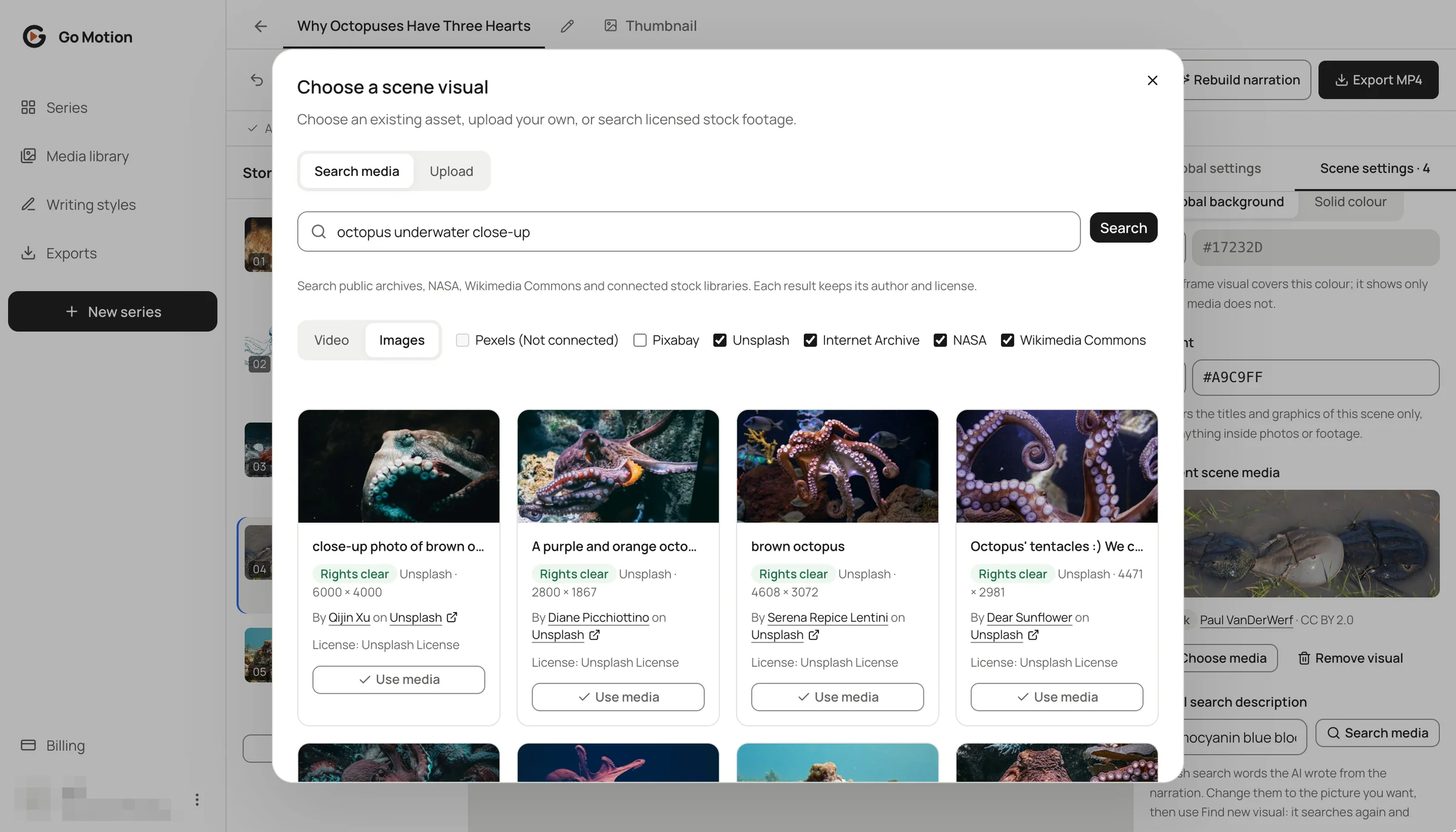
Open a scene, change its search words to the picture you have in mind and press Find new visual: Go Motion searches stock and archive libraries again and picks by looking at the results. If nothing suitable turns up, the scene keeps its current picture and the 5 credits come back. Prefer to choose yourself? Choose media searches Pexels, Pixabay, Unsplash, NASA, Wikimedia Commons and the Internet Archive, or takes your own upload.
 12345
- 1Search by subject or action; the scene’s own search words are filled in for you.
- 2Switch between video clips and images.
- 3Choose which libraries to search.
- 4Every result keeps its author and license.
- 5Use media places it on the scene.
Tune the whole series
Global settings change every scene at once: caption style and position, background music and the narration voice. Drag the captions anywhere in the preview, or reset them to the default position.
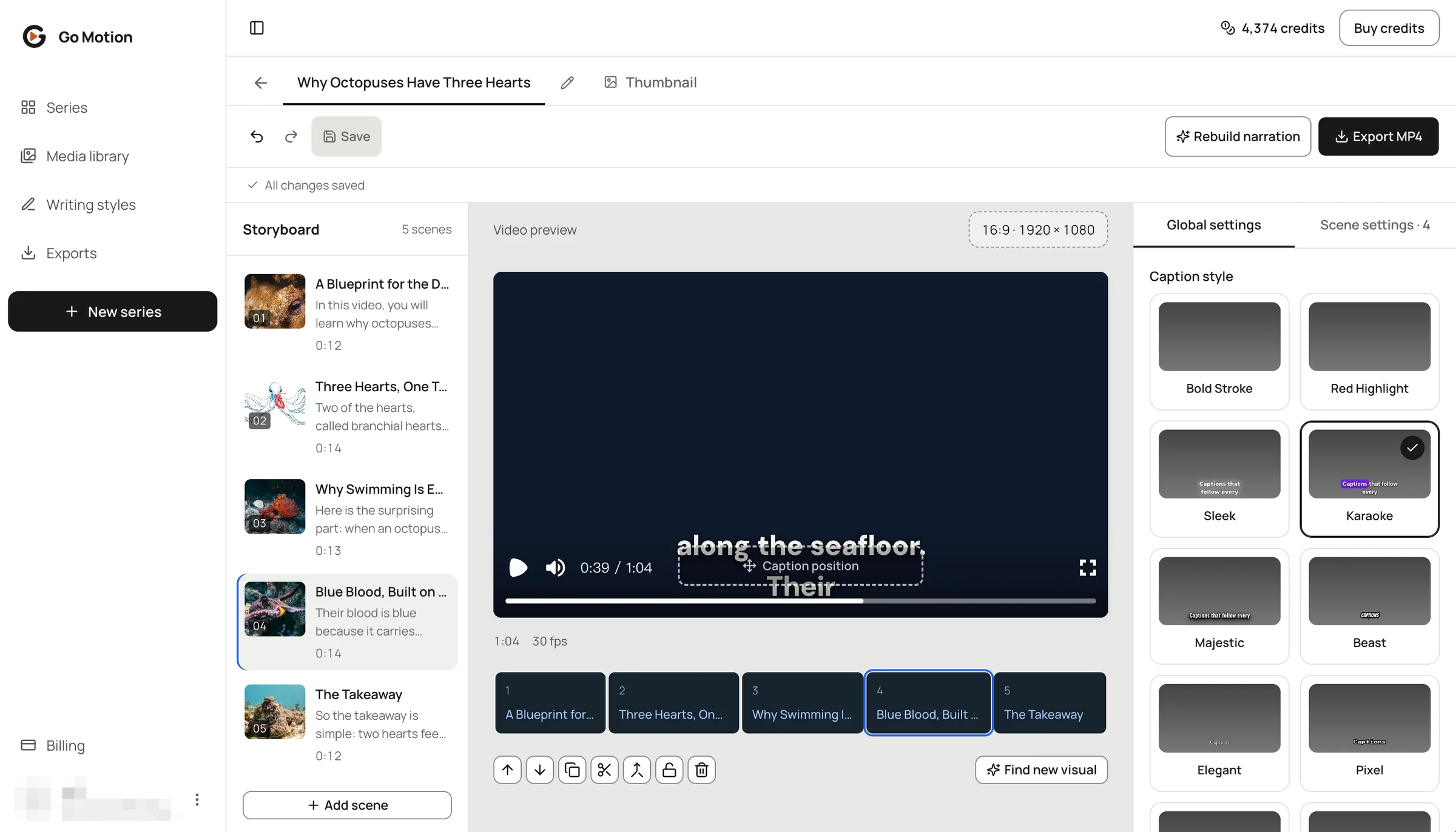 13
- 1Global settings tab.
- 2Caption style for the whole series; music and voice follow below.
- 3Drag the caption block in the preview to move it.
Save, undo and come back later
Changes save as you work, and the toolbar shows All changes saved. Undo and redo cover text edits and scene moves. Close the tab and the series waits on the Series page exactly as you left it.
What editing costs
| Change | Price |
|---|---|
| Text, order, captions, music and layout | Free |
| Rebuild changed narration | 1 credit + 4 per changed minute |
| Find new visual | 5 credits, returned if nothing suitable is found |
| Choose media from your library or open sources | Free |