Oct 24, 2026
InVideo AI Alternative: Choose by Your Video Workflow
Choose an InVideo AI alternative by workflow. Compare an AI video generator with an AI video editor, then check revisions, export limits, and real costs.

InVideo AI Alternative: Choose by Your Video Workflow
Choose an InVideo AI alternative by the work you need to replace. Pictory is worth evaluating when you start with scripts, articles, or slides. Fliki suits a shortlist built around narrated videos and voice choices. HeyGen belongs in a presenter-led workflow, while Descript makes sense when you already have recordings to edit. GoMotion is another candidate to explore for topic-led or scripted faceless videos.
These are different starting points, not interchangeable promises. The useful question is whether a tool can take your material to an acceptable export, including the corrections you routinely make. A convincing first draft matters less if changing one sentence forces you to rebuild the video.
This guide offers a workflow-based shortlist and a repeatable evaluation method. The recommendations describe product fit; they are not a ranking based on hands-on testing or measured rendering performance.
Start with the task you want to replace
Before choosing an InVideo AI alternative, write down your usual input and your required output. A finished script, an interview recording, and a product image each create different production problems. Likewise, an educational explainer and a presenter-led sales video need different forms of control.
Separate three jobs: creating source material, assembling scenes, and editing an existing recording. An AI video generator might produce a striking clip without completing your narration, captions, or final assembly. An AI video editor might handle revisions brilliantly while expecting you to supply the footage.
Also establish what already works in your current setup. InVideo now presents agent-assisted editing, a multitrack timeline, and storyboarding among its capabilities. Treating it purely as a stock-footage assembler creates a misleading comparison. If your current workflow meets your needs, a switch should solve a specific recurring problem.
Match your InVideo AI alternative to your starting material
Use this table to choose what to investigate first. Each final column is a question for your trial, not a claim that the tool fails that requirement.
| Your starting point | Candidate to evaluate | Decisive trial question |
|---|---|---|
| A script, article, or slide deck | Pictory | Does the scene plan preserve your meaning? |
| A narration-led idea | Fliki | Can you correct pronunciation and pacing efficiently? |
| A message delivered by a presenter | HeyGen | Does the delivery suit your subject and audience? |
| An interview, tutorial, or podcast recording | Descript | Can you cut and rearrange speech without awkward transitions? |
| A topic or script for a faceless video | GoMotion | Do the available scene controls support your correction workflow? |
Pictory: repurpose material you already have
Pictory accepts several starting formats, including scripts, URLs, presentations, images, and audio. Its workflow includes planning scenes and refining the result. That makes it an InVideo AI alternative to investigate when your main challenge is turning existing material into a coherent sequence.
For a script to video project, inspect more than whether each sentence receives an image. Does an example appear while the narrator explains it? Are caveats retained? A product benefit paired with an unrelated lifestyle clip can change the message even when the narration is accurate.
Start with a document you understand well. If you must repeatedly rewrite the source just to obtain sensible scenes, include that preparation in your comparison. Imported content is a starting point, not proof of a usable video.
Fliki: put narration at the center
Fliki combines text-based video creation with voiceover, visuals, music, and subtitles. Consider it as an InVideo AI alternative when narration is central to your format and voice selection is a major part of production.
Test a sentence containing a brand name, a pause, and an unfamiliar technical term. Then change only that sentence. Listen for differences in delivery and inspect whether captions and scene timing remain appropriate. A voice that sounds pleasant in a sample may still need adjustment for your subject.
A faceless video maker should support the way you tell stories. Decide whether your format needs illustrated explanations, footage-led narration, or recurring characters before comparing the available styles.
HeyGen: make the presenter part of the message
HeyGen focuses on avatar-led video and personal presenter workflows. It is an InVideo AI alternative to consider when a visible speaker is part of the brief, such as a course introduction or a spoken product explanation.
The editorial decision comes first: does a presenter help the viewer understand or trust this message? A talking head adds little when the audience really needs a detailed product demonstration. Evaluate delivery, pronunciation, gesture, and the relationship between the speaker and supporting visuals.
If you need translated versions, review each target language with a fluent speaker. Natural delivery and accurate meaning are separate acceptance criteria; a convincing face cannot validate either one for you.
Descript: edit the recording you already made
Descript offers text-based video and audio editing alongside recording, captions, and other production tools. As an InVideo AI alternative, it is especially relevant to a shortlist built around interviews, podcasts, screen recordings, or spoken tutorials.
Use a sample with a repeated sentence and a correction midway through an explanation. Cut the repetition, move the correction, and watch the transition. The transcript can read smoothly while the picture or background audio reveals the edit.
Choose an AI video editor around your actual revision pattern. If most work involves shortening recordings, comparing only prompt-to-video features misses the task you perform every week.
GoMotion: evaluate the faceless production workflow
GoMotion is designed around topic or script input, scene-based production, narration, captions, and scene corrections. That positioning makes it a candidate when you want a faceless video maker organized around a complete narrated sequence.
When assessing GoMotion as an InVideo AI alternative, check the options currently available to your account before planning a production schedule. Evaluate scene changes and the final export yourself. The relevant question is whether its workflow fits your project, rather than whether a feature list sounds comprehensive.
Give your finalists the same small production brief
A useful comparison needs a controlled assignment. For a script to video workflow, prepare a 60–90-second explainer with one audience, one main point, and a clear closing action. Use material you own or have permission to use, and avoid a topic that requires extensive new research.
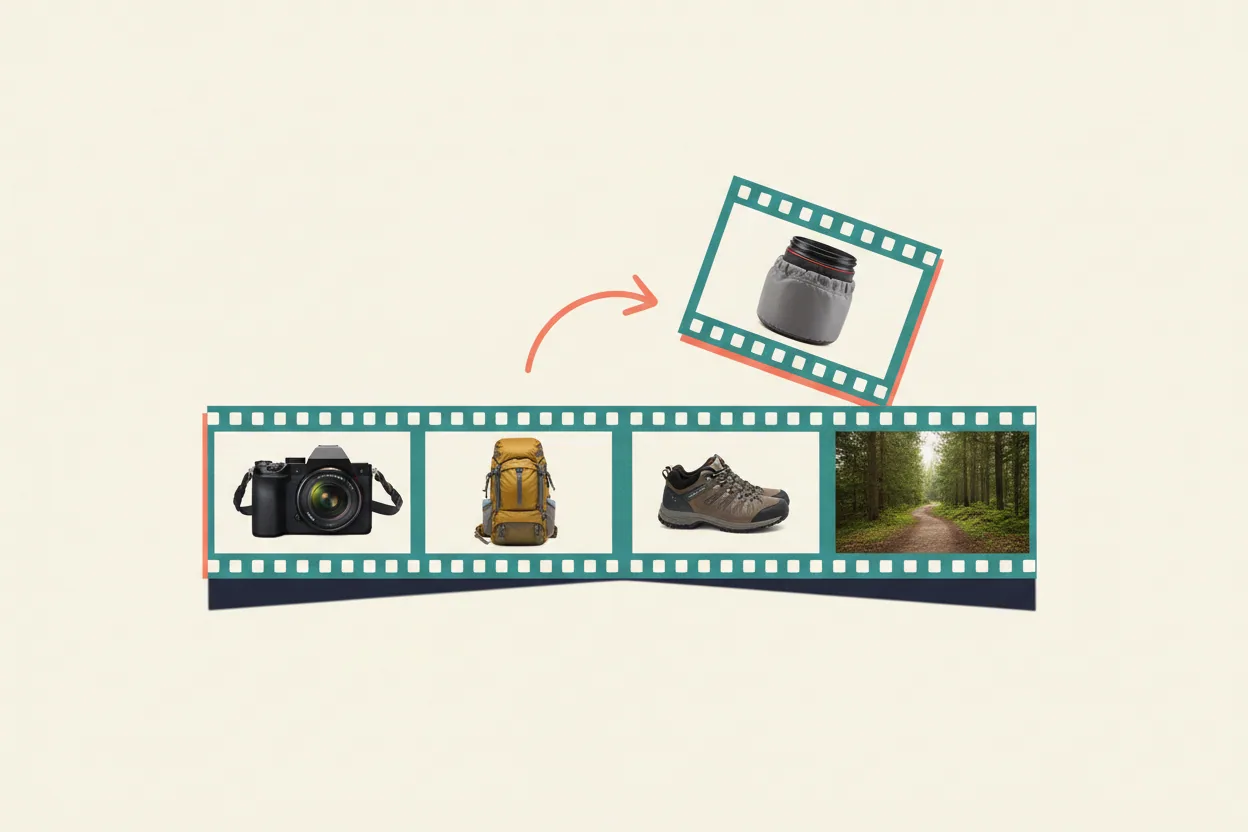
For example, explain how to pack a camera bag for a short walk. Specify a simple sequence: select the essentials, protect the lens, arrange the bag, and check the weight. Ask for a particular orientation and identify one object that must remain visually accurate.
Shortlist two candidates that support your required output, then use the same brief for both. An avatar explainer and a footage-led demonstration solve different problems, so judge format fit before timing production. Inputs may need adapting: a recording editor needs a recording, while an avatar workflow needs a presenter brief. Record that extra preparation alongside editing and export time.
Judge the first cut against observable requirements: all essential points included, understandable narration, relevant visuals, readable captions, and an export that plays correctly. Keep aesthetic preferences separate from failures that make the video unusable.
Make one deliberate correction
The most revealing comparison happens after the first draft. Replace one visual and rewrite one sentence without changing the rest of the brief. Ask the tool to retain the surrounding scenes, voice, and overall structure wherever its controls allow.
In the camera-bag example, change “Pack a spare lens” to “Leave the spare lens at home and carry a lens cloth.” The revised scene should show the cloth, the voice should read the new instruction, and the captions should match. This gives you a concrete correction to inspect across multiple layers.
For each InVideo AI alternative, record what actually changed. Did the new narration still match the visual? Did a longer sentence create a rushed scene? Did unrelated shots change? Were previously accepted captions or transitions disturbed?
This is particularly useful for a faceless video maker because small corrections can affect several layers at once. A new object name may require different footage, revised narration, new captions, and a longer scene. The tool should make those dependencies understandable.
Do not assume a quick generation means a quick revision. Count the actions you perform, the waiting time, and any extra tool needed to repair the result. Keep these as your observations, rather than general claims about every user's experience.
Compare the cost of accepted videos
The cheapest InVideo AI alternative on a subscription page may be expensive for your workflow. Base your estimate on videos you would actually publish, with revisions included. A monthly allowance has limited value if your preferred settings consume it faster than expected.
Set the acceptance threshold before the trial: an incorrect essential visual, an omitted point, or an unusable export should keep a draft out of the accepted count. Apply that threshold to both candidates.
Keep subscription spending, usage spending, and your time in separate columns. Include additional credits, essential add-ons, and software required to finish the export. Then divide the total cash cost by the number of accepted videos produced during the period.
For illustration, suppose a hypothetical trial involves $30 in allocated subscription cost and $10 in extra usage, producing four accepted videos. The cash cost is $10 per accepted video. If editing took two hours, record those two hours separately. This is an example calculation, not any product's price.
An AI video generator may meter generated footage differently from assembled video minutes. Check how your chosen settings, retries, and revisions are charged. Do not infer the answer from the word “credits”; the unit has meaning only within that product's rules.
Check exports before committing to a larger project
An InVideo AI alternative needs to pass the entire delivery workflow. Export the corrected sample and open it outside the creation tool. Review it on the screen size your audience will use, with sound on and off.
Check these details before moving your recurring work:
- Confirm the required aspect ratio, resolution, duration, and file format are available on the plan you would buy.
- Inspect watermark rules and whether downloading requires a different tier from generating a preview.
- Check captions for spelling, timing, contrast, and clipping near the frame edges.
- Review the applicable conditions for uploaded assets, stock media, voices, music, and intended use.
- Determine what can be retained or exported: the final video, original assets, narration, captions, and editable project data may have different options.
A free InVideo AI alternative can be useful for an initial comparison even when its export is limited. Treat a free plan, a temporary trial, and an included credit allowance as different offers. Confirm the current restrictions before investing time in a long project.

Decide what to move, and what to keep
Switch when the candidate solves your recurring problem and passes your delivery checks. Stay when the proposed gain disappears after preparation, correction, and export. Sometimes the sensible change is moving one part of production rather than replacing everything.
For instance, a strong script to video workflow can handle a recurring explainer format while a separate AI video editor remains useful for interviews. That combination has a cost: additional transfers, subscriptions, and version management. Include those steps in your decision.
Before adopting an InVideo AI alternative for a series, complete another short sample with a different subject. Keep the same quality threshold. This helps reveal whether the first success depended on an unusually easy brief, familiar vocabulary, or convenient visuals.
The choice should leave you with a clear reason to switch: more suitable source inputs, easier corrections, a better presenter format, or a manageable cost per accepted video. “More AI features” is too vague to guide the next production decision.
To explore GoMotion as an InVideo AI alternative, bring your short video brief and evaluate its current creation and export options. Make one deliberate correction, review the downloaded result, and decide whether the workflow suits your next project.